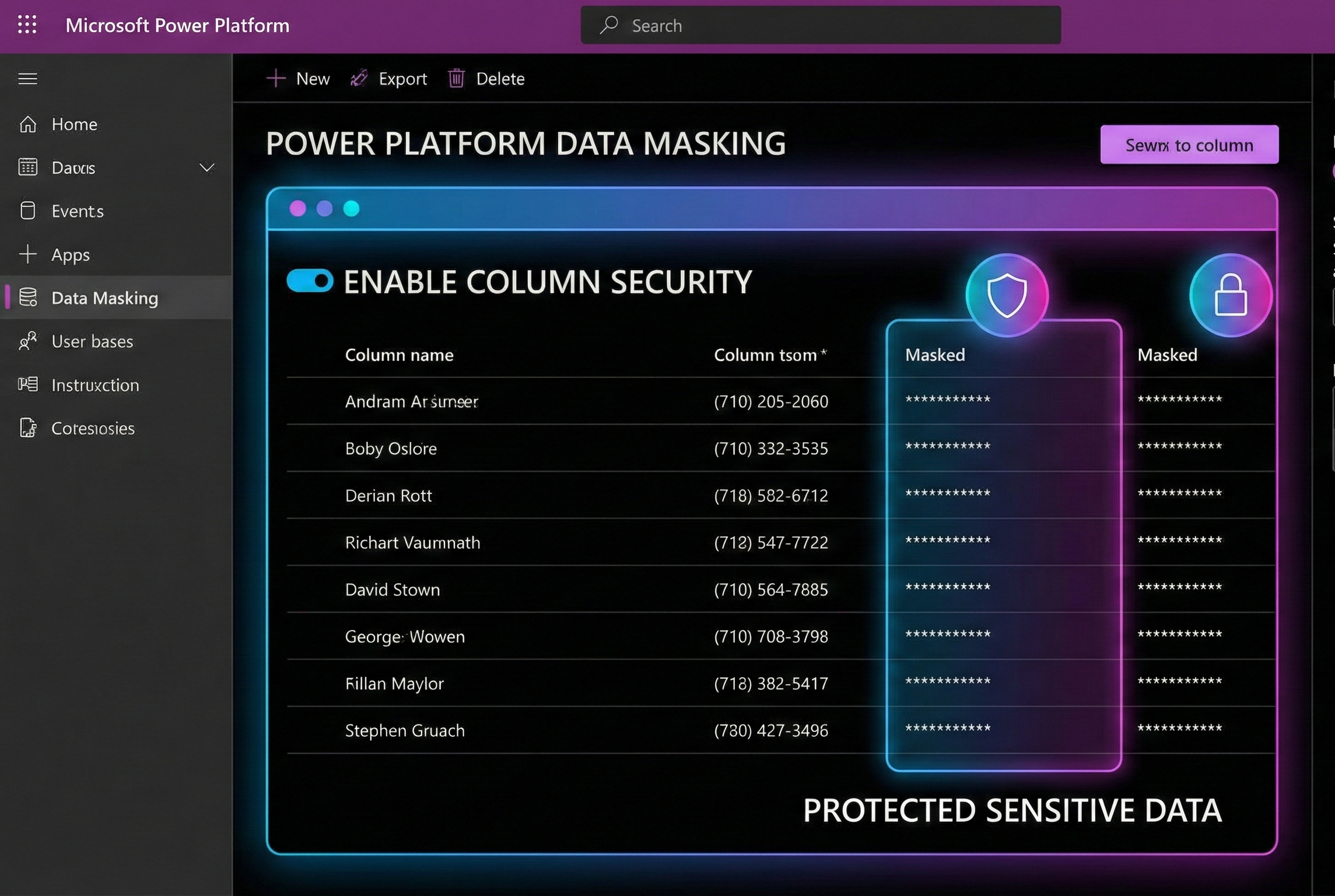
How to create, manage and apply data masking in Microsoft Dataverse
February 6, 2026 | Power Platform | 10 min read
Protecting Sensitive Data in Power Platform with Masking Rules
Sensitive data protection is important in business apps - especially when frontline users, support teams or external systems interact with customer records. Power Platform now offers masking rules that help you protect sensitive information like credit card numbers, email addresses, SSNs and other personally identifiable data without losing visibility for authorized users.
What Are Masking Rules?
A masking rule is a pattern-based rule that replaces sensitive values in a column with masked characters (like # or *) so the real values aren’t exposed accidentally. It’s part of column-level security in Microsoft Dataverse and Power Apps.
Masking is also known as:
- Data obfuscation
- Data de-identification
- Secure masking
Masking happens dynamically when the system returns values to users or applications.
How Masking Works
At a high level:
- Define a masking rule -specify a name, a regular expression (regex) and a "mask character."
- Attach the rule to a secured column - enable column-level security and pick the mask.
- Set user permissions - control who can see masked vs. unmasked values.
- When data is retrieved, users without unmask permission see masked data. Authorized users can see full data, one record at a time.
Step-by-Step: Create a Masking Rule
Masking rules are created within a Power Apps solution:
- Go to Power Apps Maker Portal and open your environment."
- Create or open an existing solution
- Add a new Secured Masking Rule component.
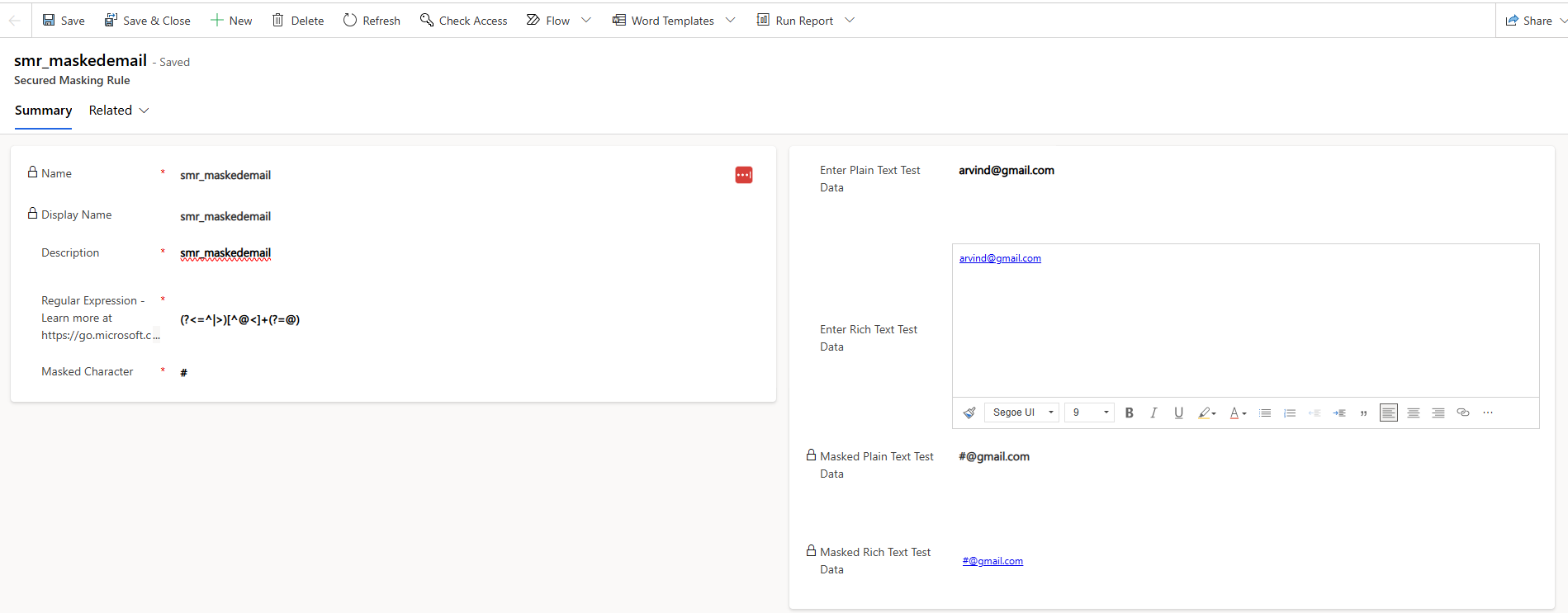
- Enter a Name, Display Name and Description.
- Enter a Regular Expression to match the sensitive pattern.
- Choose a Masked Character (e.g., #).
- Optionally, test with sample values (plain text and rich text).
- Save the rule.
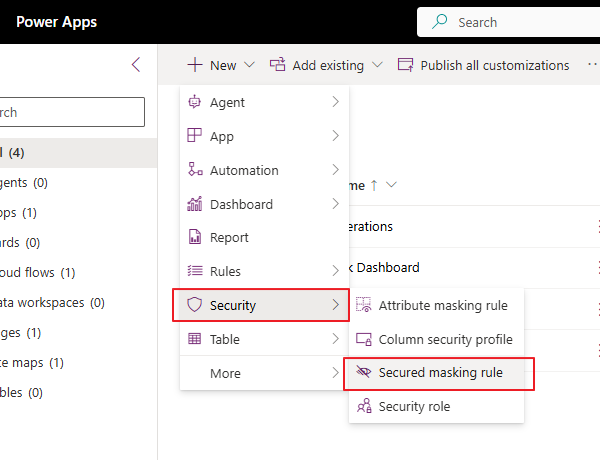
Apply a Masking Rule to a Column
Once a masking rule is defined:
- Go to the table with the column you want to mask.
- Open the Columns list and select the column.
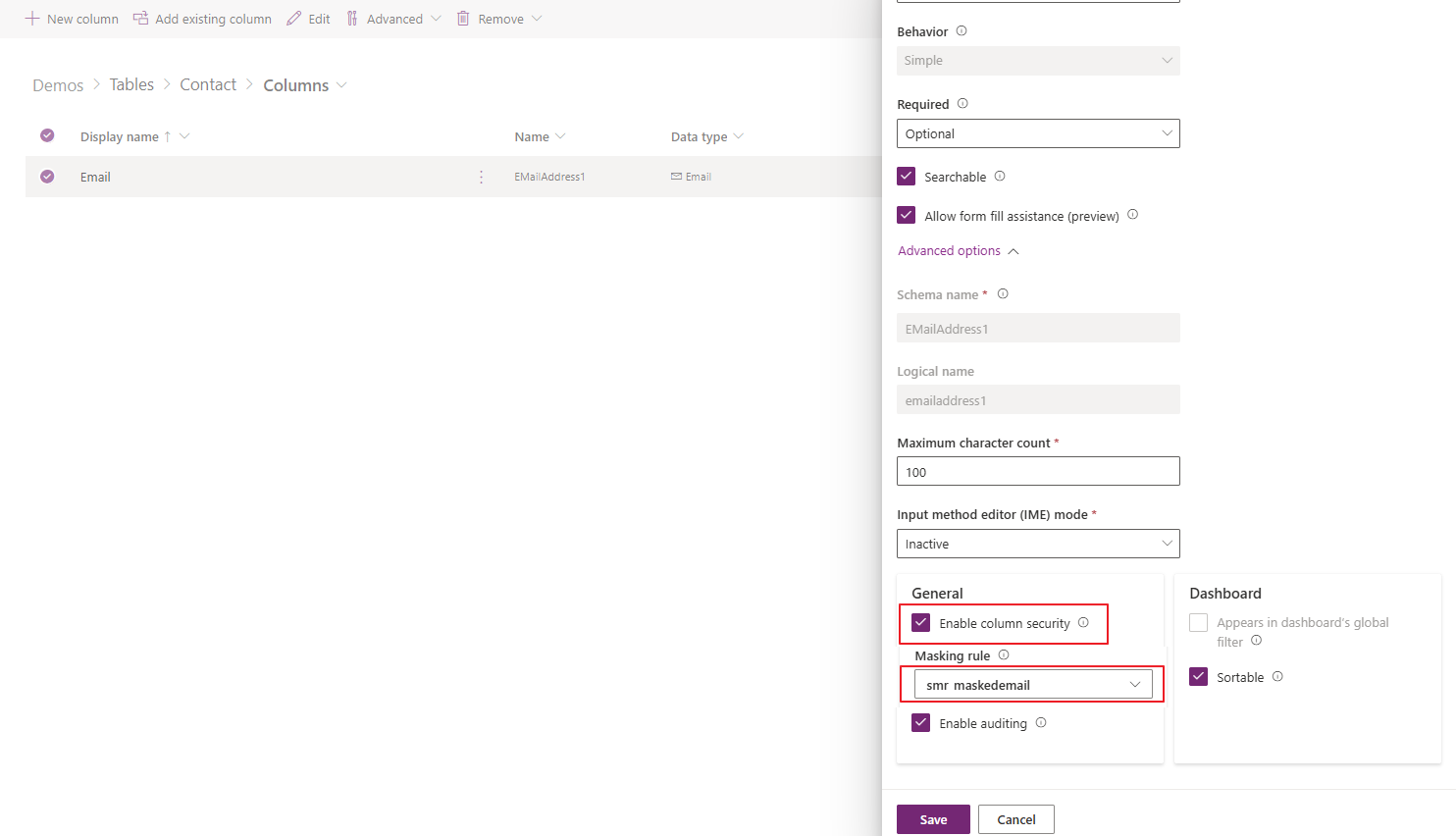
- In Advanced options, enable Column Security.
- In the Masking rule dropdown, choose the rule you created.
- Save changes.
Only Text (single-line and multi-line) and Number column types currently support being masked this way.
Note: Picking a masking rule doesn’t grant access, it only defines how data appears when returned. Column-level security separately controls who can see masked or unmasked values.
Permissions and User Experience
Column security profiles control what a user can do:
| Permission | Effect |
|---|---|
| Read | User sees masked values if a rule is applied |
| Read Unmasked | User can retrieve unmasked values (one record at a time) |
| Update / Create | Users can modify the data |
| Audit | Access (even unmasked) is logged for security compliance |
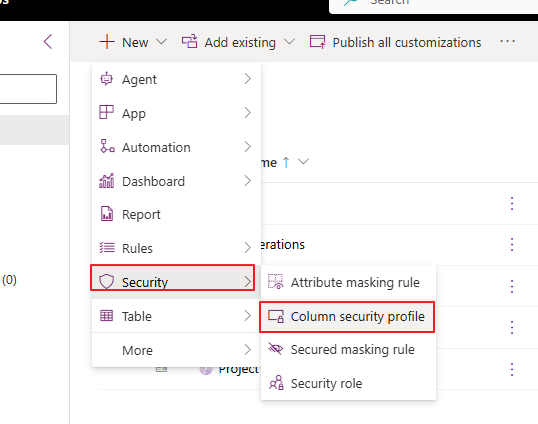
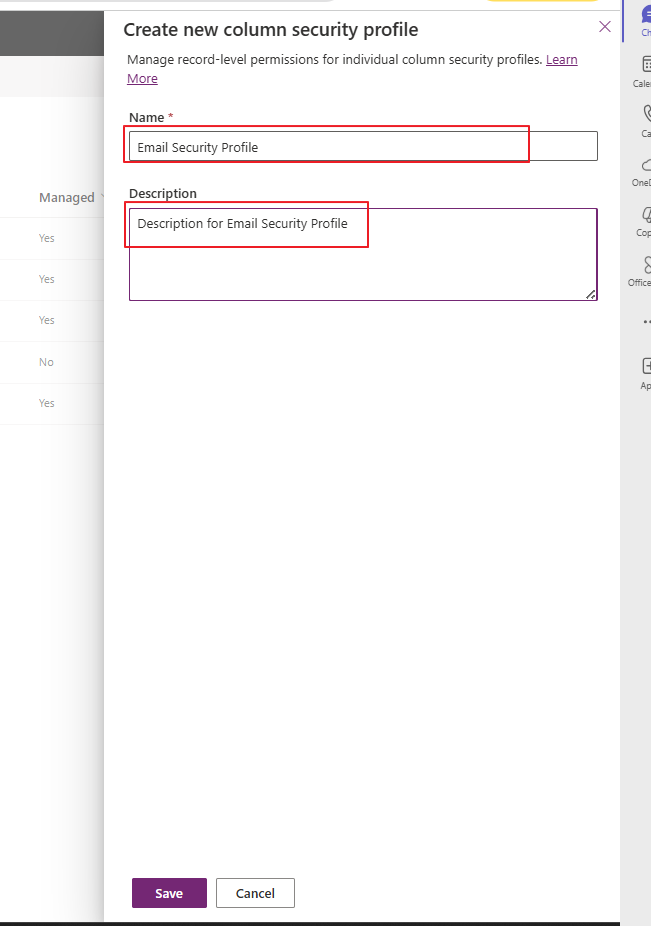
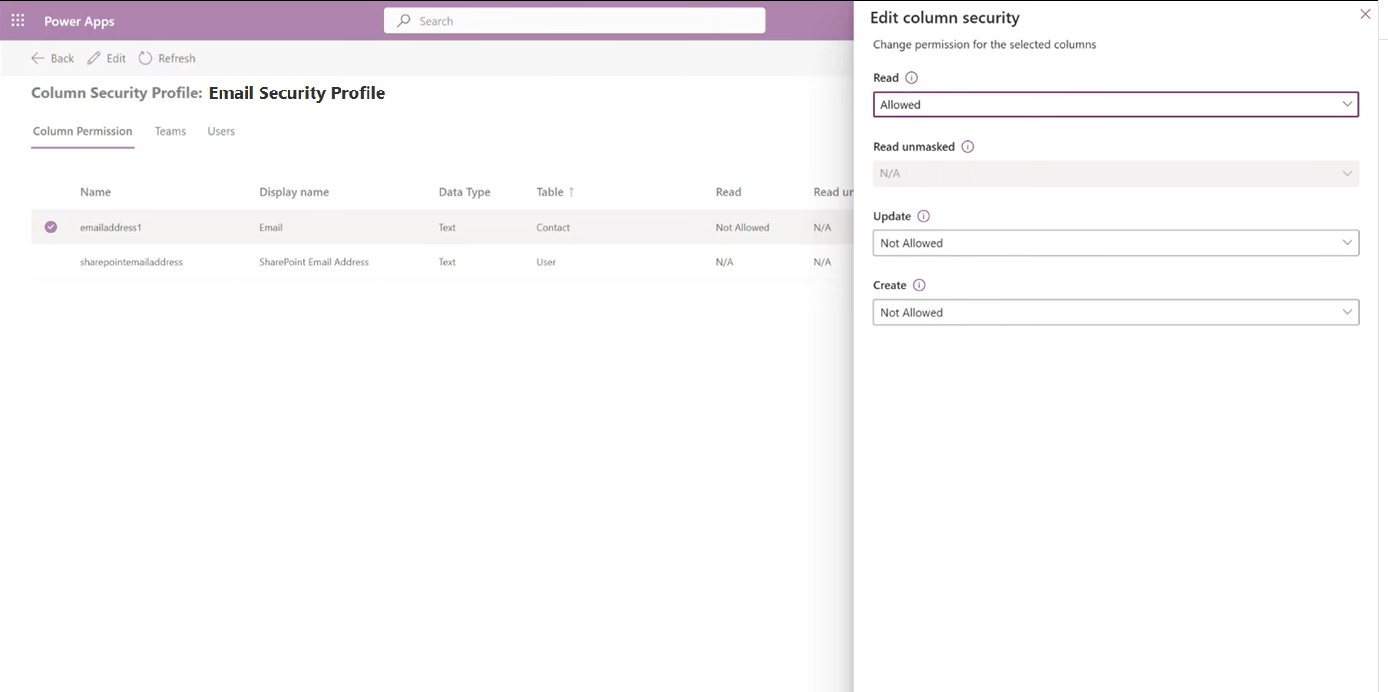
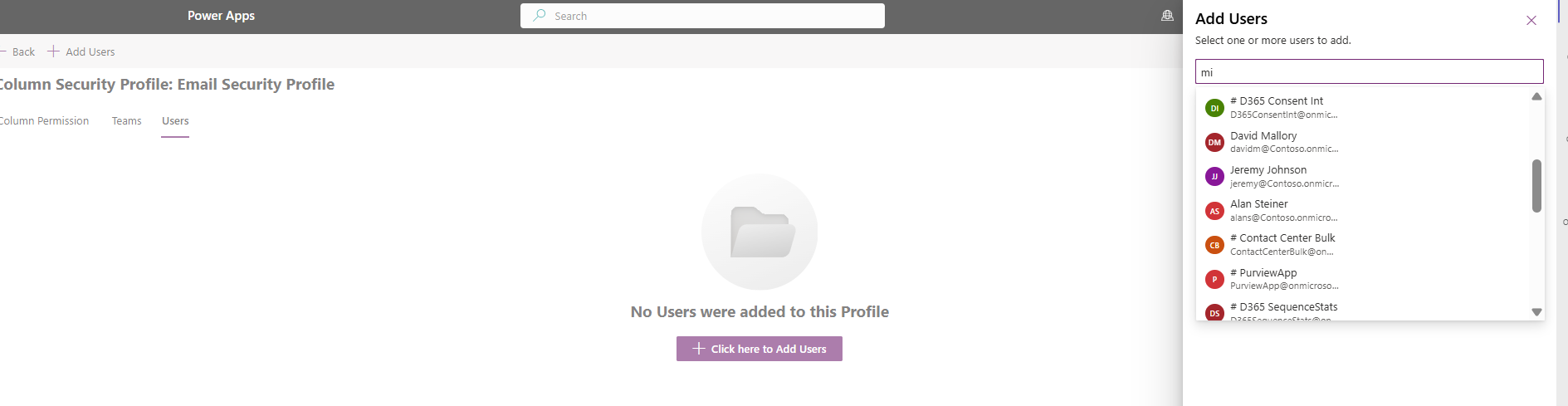
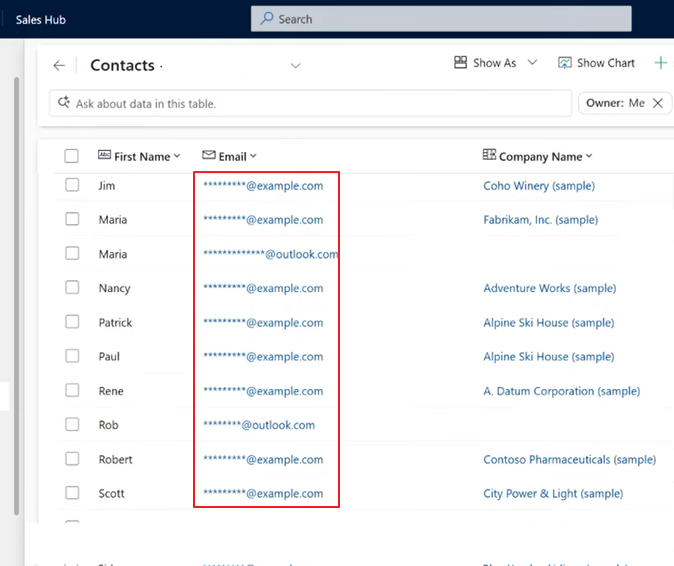
Users without Read Unmasked permission see masked data everywhere: grids, forms, Excel exports, Copilot, etc.
Limitations and Known Considerations
While masking rules are powerful, there are some constraints:
- Only Text and Number data types support masking currently.
- When a form uses a rich text editor control, the whole field becomes masked by default if a rule applies.
- Viewing unmasked data by non-administrator users is evolving, some UI elements (like the “view unmasked” button) may be limited to admin roles in certain releases.
Conclusion
Masking rules in Microsoft Power Platform offer a flexible and robust way to protect sensitive data while preserving user productivity and compliance. By combining regular expressions, column security and permission profiles, organizations can prevent data leaks, without breaking business processes.